
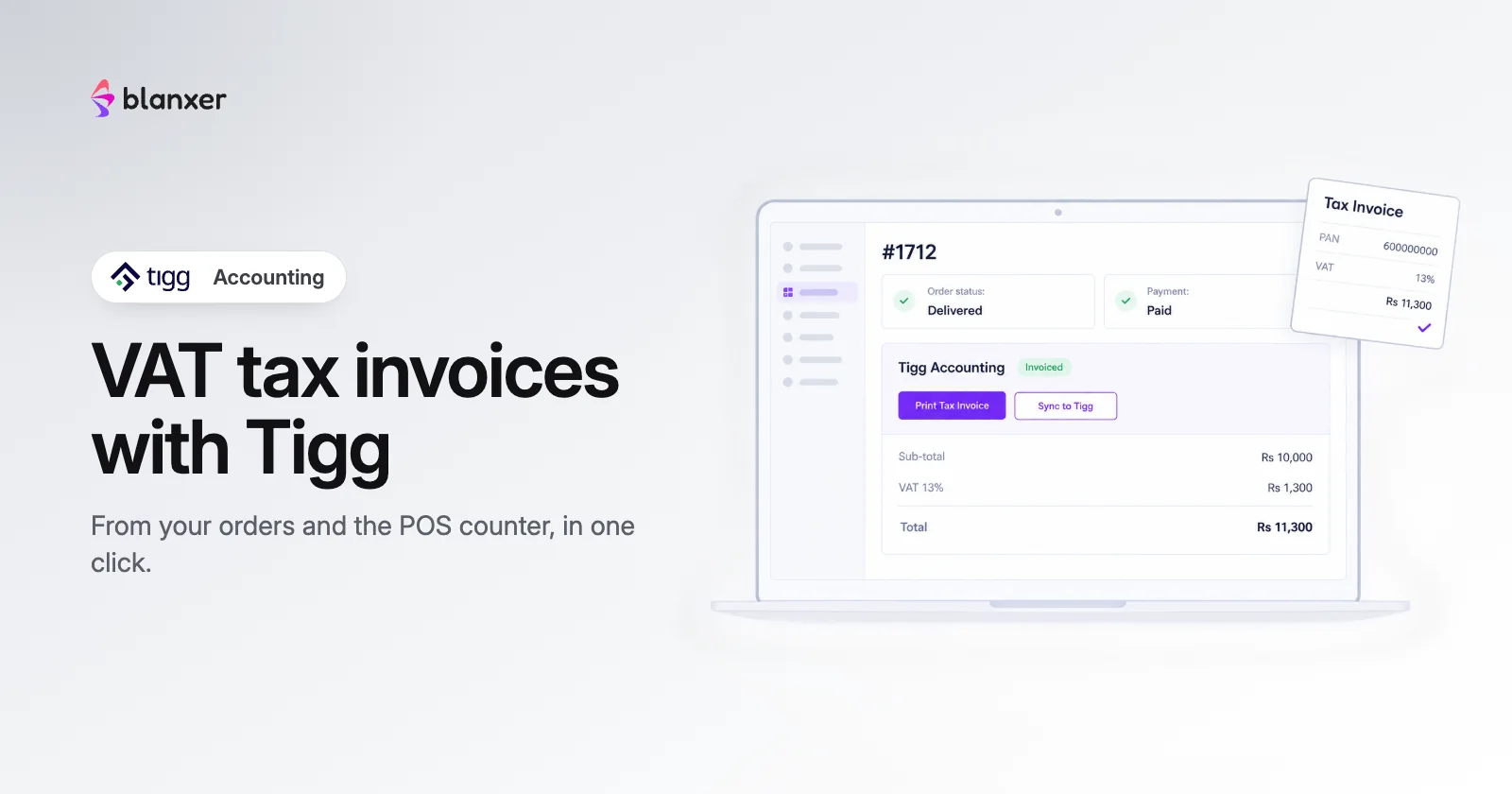
If your business is VAT-registered, every sale needs a proper VAT tax invoice. Blanxer connects to Tigg Accounting, IRD-certified accounting software, so your website orders, phone and Instagram orders and POS counter sales become Tigg invoices in one click, with VAT, discounts, delivery charge and payment already filled in.
Watch it in Nepali: IRD tax invoices with Tigg Accounting (3 min)
Who makes the invoice?
Tigg does. Blanxer sends the sale and Tigg generates the invoice, so it follows your Tigg company’s IRD setup. Blanxer itself is not IRD-certified.
What you need
- A Tigg Accounting company, with your Namespace, Client ID and Secret Key for API access
- Your branches (locations), warehouse and bank or cash accounts set up in Tigg
- An owner or manager login in Blanxer (other roles can’t use Tigg)
Connect Tigg to Blanxer
Step 1
Open the Tigg Accounting plugin
In Blanxer go to Plugins and open Tigg Accounting. The panel is called Configure Tigg Plugin.
Step 2
Enter your credentials
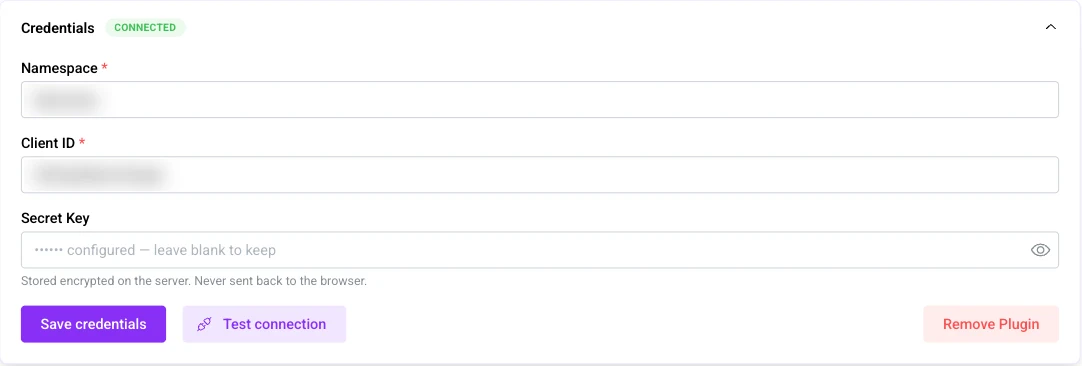
Under Credentials, enter your Namespace, Client ID and Secret Key, then click Save credentials. The secret is stored encrypted.
Step 3
Test the connection
Click Test connection. Blanxer loads your Tigg locations and warehouses, and a green Connected badge appears.

Set it up once
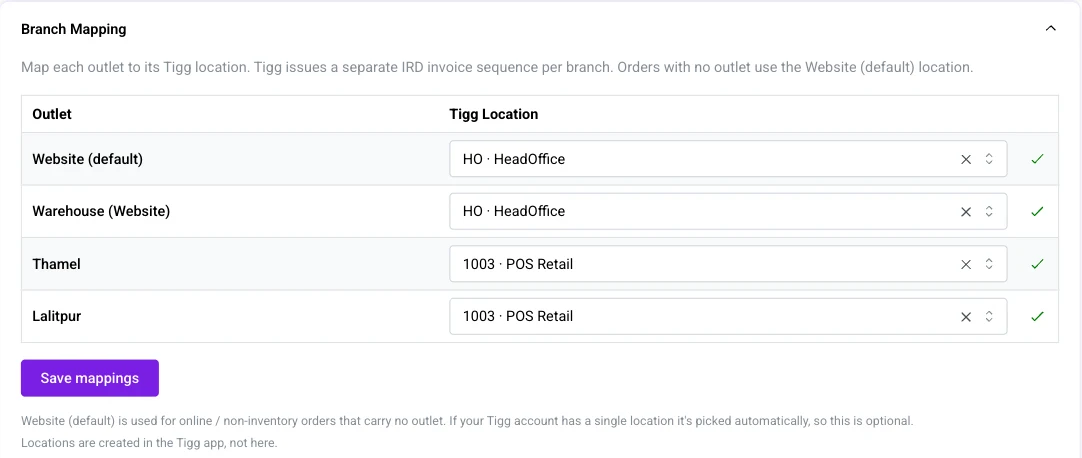
Branch mapping
Under Branch Mapping, match each Blanxer outlet, and the Website (default), to a Tigg location, then click Save mappings. Each branch keeps its own invoice sequence. If your Tigg company has only one location you can skip this; with several, every outlet must be mapped.
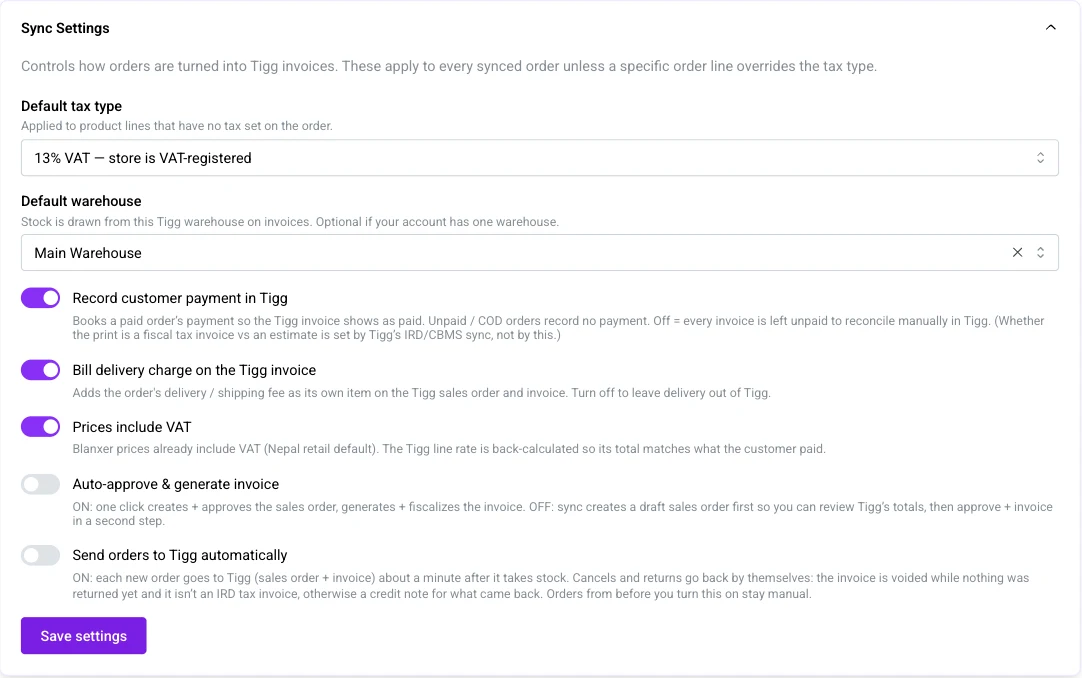
Sync settings
- Default tax type: No VAT (not VAT-registered), 13% VAT (VAT-registered) or 0% VAT (zero-rated or exempt goods)
- Prices include VAT: on by default; the VAT is worked back out of your selling price
- Bill delivery charge on the Tigg invoice: adds the delivery charge as its own line
- Record customer payment in Tigg: marks paid orders as paid in Tigg
- Auto-approve & generate invoice: off by default; when on, one click makes the final invoice instead of a draft first
- Default warehouse for the stock that sells
- Send orders to Tigg automatically: off by default; when on, each new order goes to Tigg about a minute after it takes stock, and cancels and returns go back on their own (a void, or a credit note for what came back)
Payment accounts
Under Payment Accounts, choose the Tigg bank or cash account for each way you take money: COD, Cash (POS / counter), Fonepay QR, eSewa, Khalti, card and so on. Only the methods you use are listed. Click Save payment accounts.
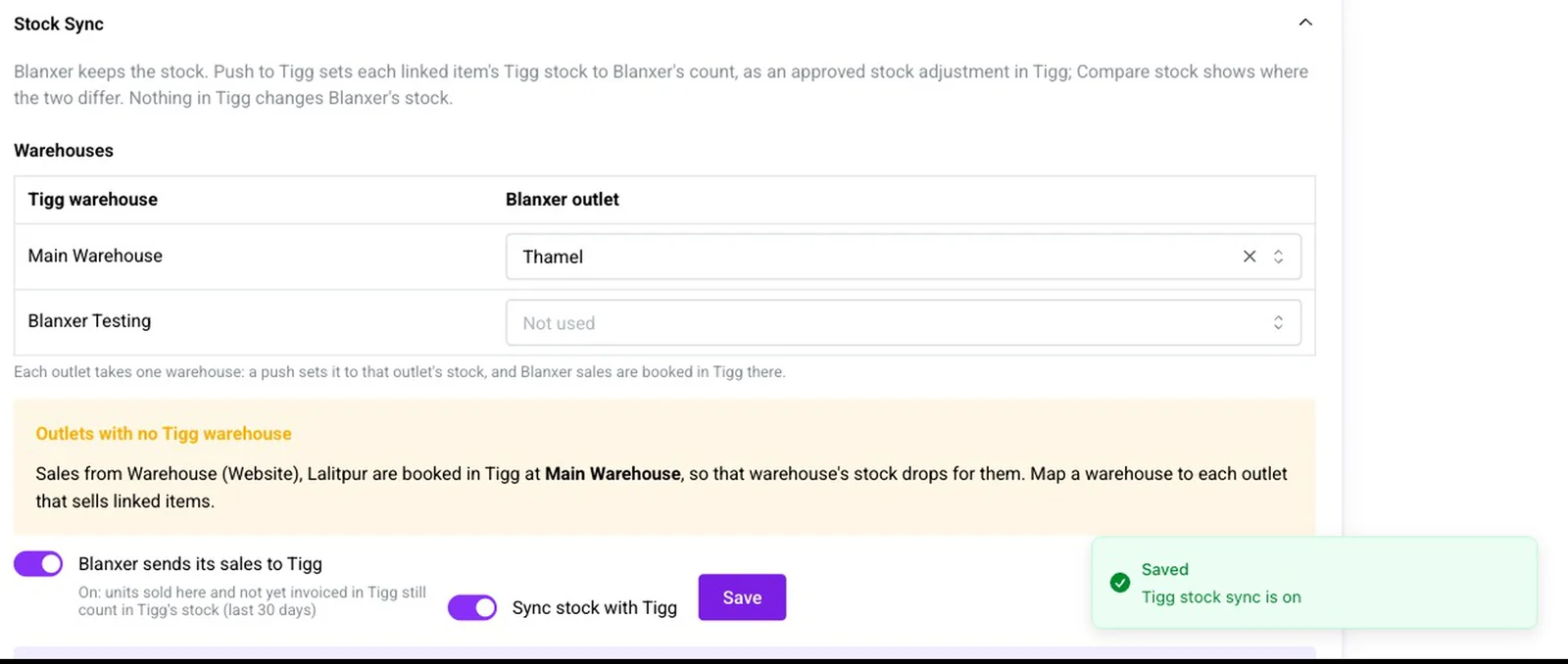
Stock sync: Blanxer keeps the stock
Blanxer is the master for stock; nothing in Tigg changes Blanxer’s count. Under Stock Sync, match each Tigg warehouse to a Blanxer outlet, then turn on Blanxer sends its sales to Tigg and Sync stock with Tigg and click Save. Each sale is then booked in Tigg at its outlet’s warehouse, so Tigg’s stock drops with it. Outlets without a warehouse are booked at the first one, and the panel tells you which.
Link your products to Tigg items
Open Products → Tigg. Every product is matched to its Tigg item, by SKU where they share one, and Link joins them all in one go. A product that isn’t in Tigg yet can be created there with Create in Tigg, so you don’t type your catalogue twice.
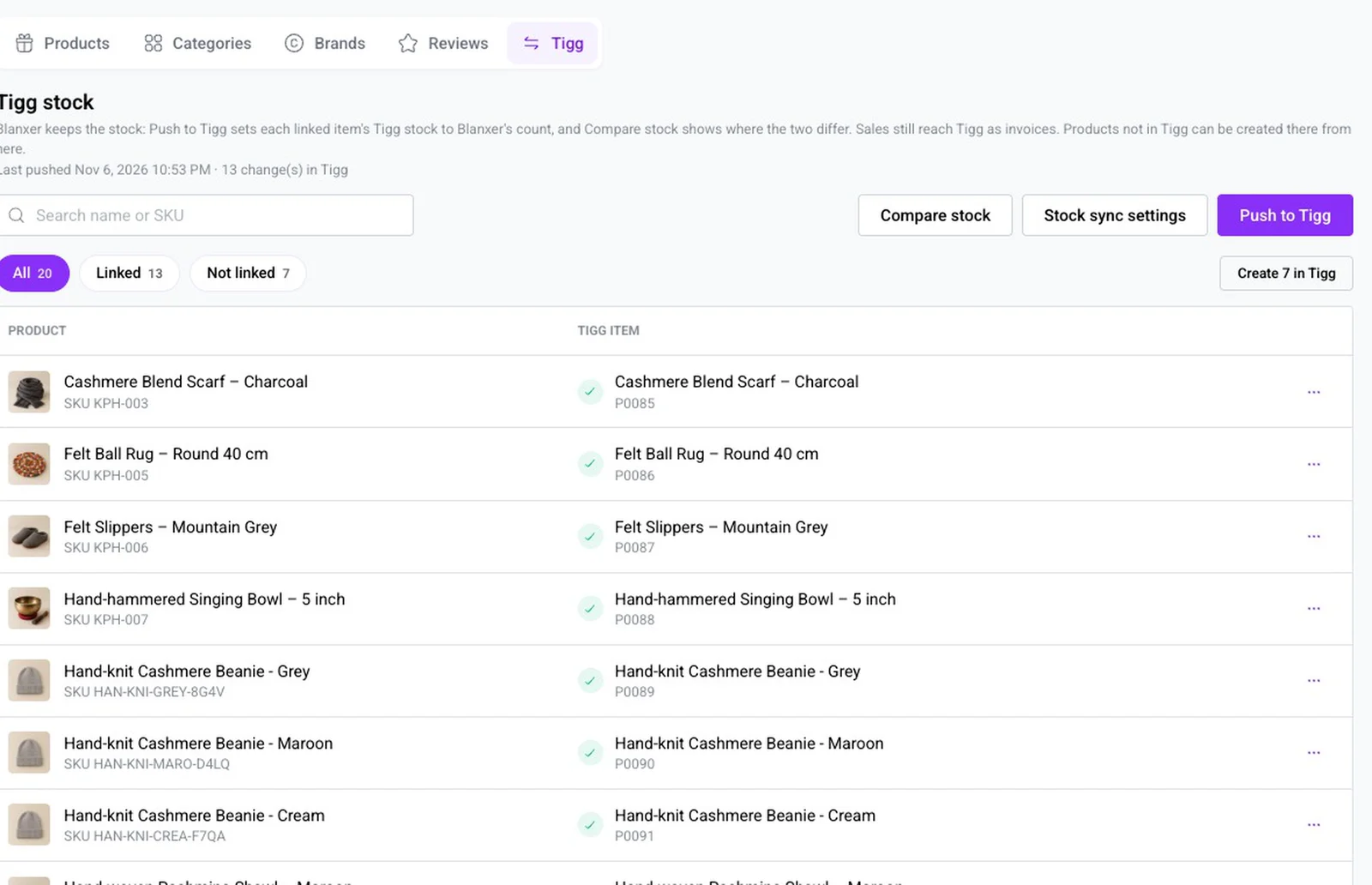
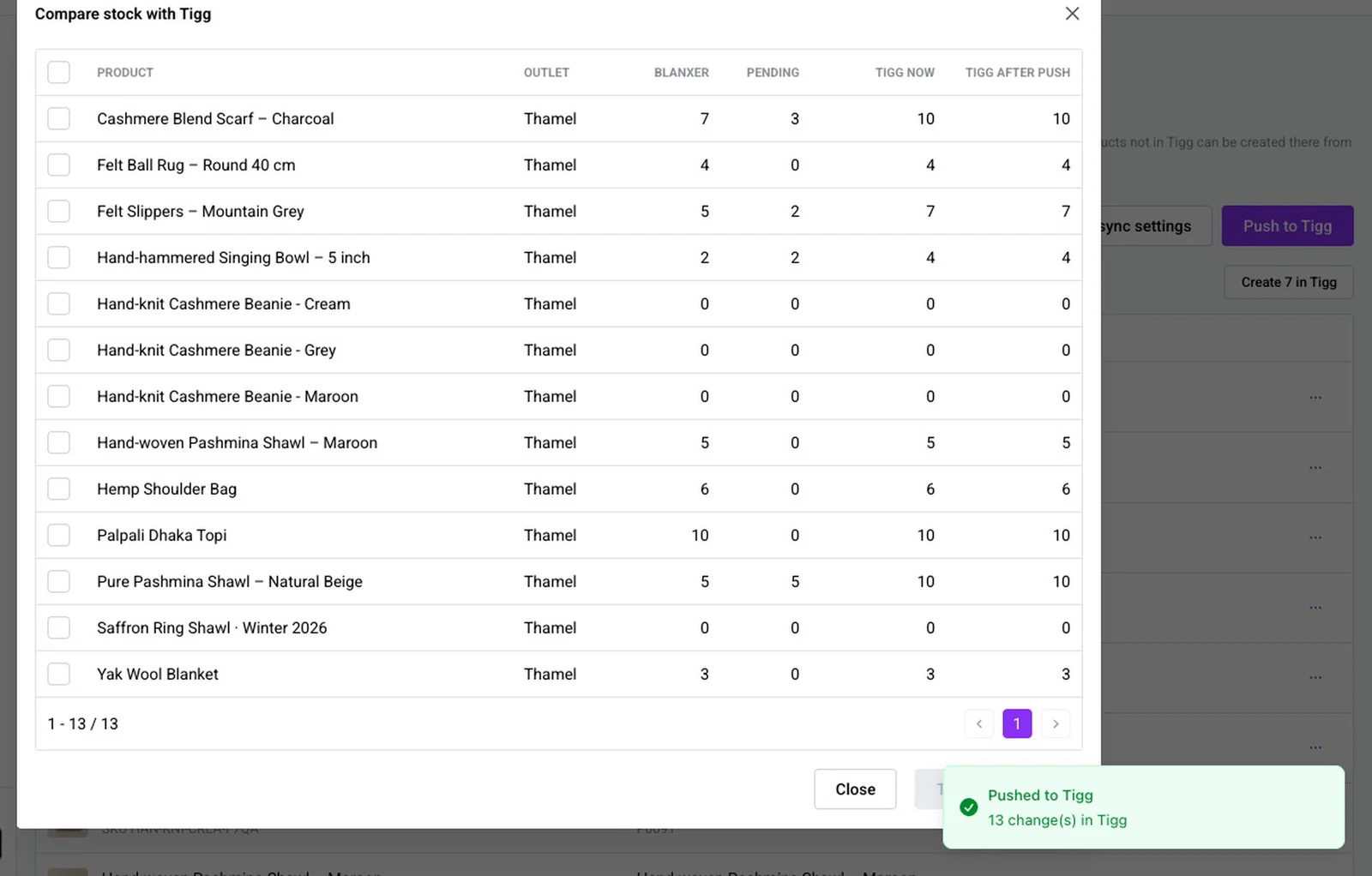
Compare stock shows Blanxer’s count, what is still pending and Tigg’s count side by side, and what Tigg will hold after a push. Push to Tigg sets Tigg’s stock to Blanxer’s, as an approved stock adjustment in Tigg, so your accountant’s books match the shop.
Make a VAT invoice for an order
Step 1
Open the order
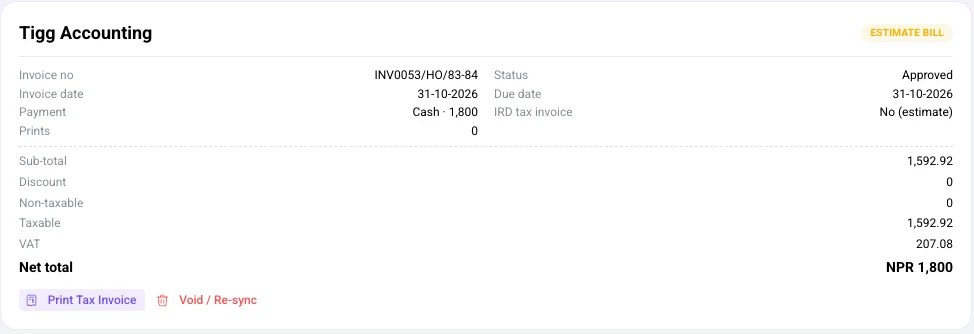
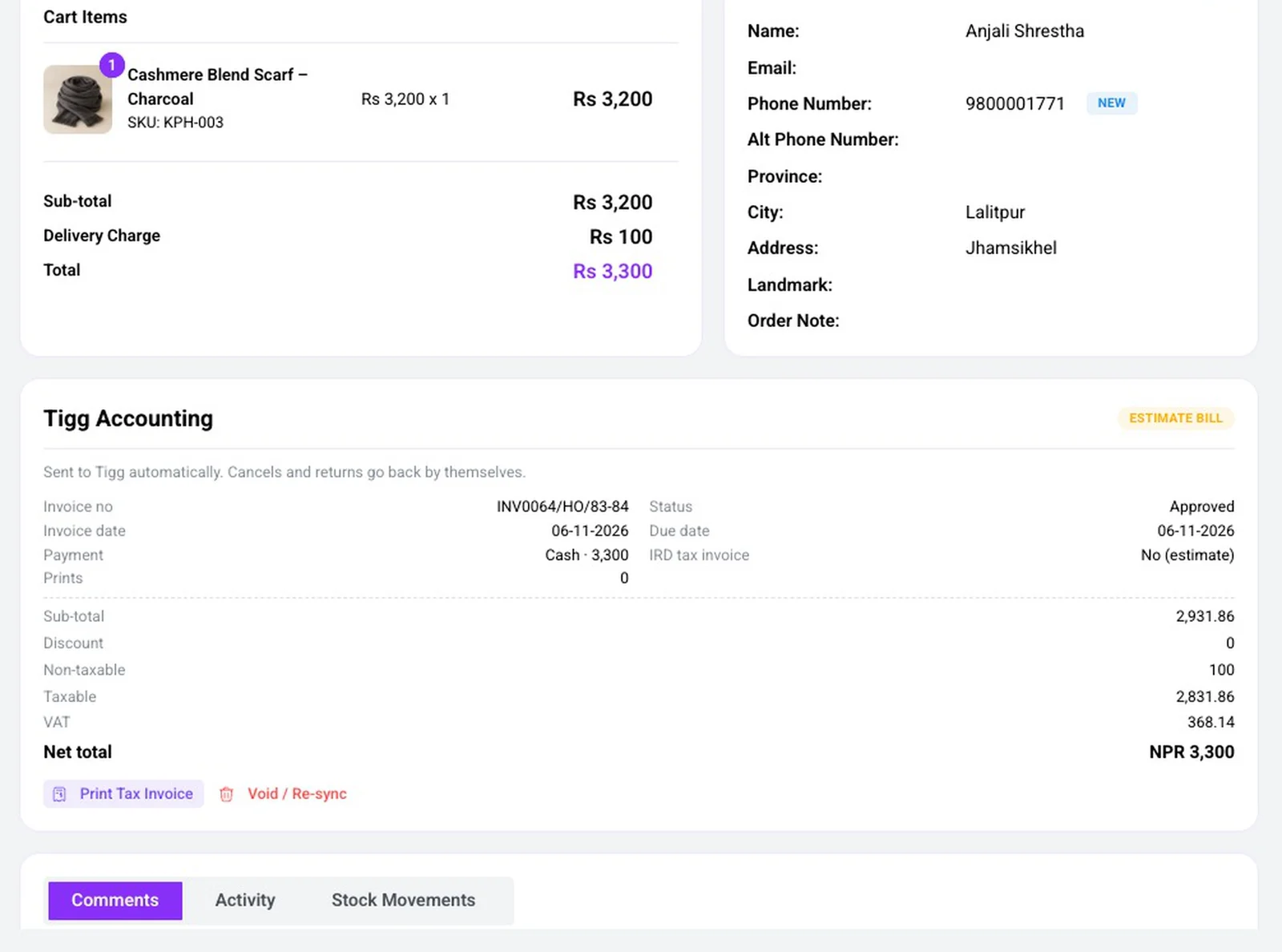
The order drawer has a Tigg Accounting card showing its status: Not synced, Draft, Estimate bill or Tax invoice.
Step 2
Sync to Tigg
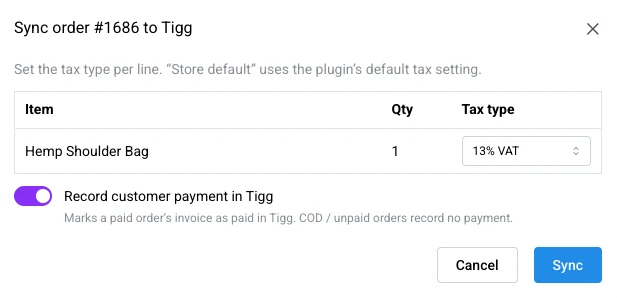
Click Sync to Tigg. Check the VAT on each line, whether to bill the delivery charge, and whether to record the payment, then click Sync.
Step 3
Approve and generate the invoice
Click Approve & Generate Invoice (or turn on Auto-approve to do both steps in one click).
Step 4
Print it
Click Print Tax Invoice to open the invoice from Tigg for printing or sharing.
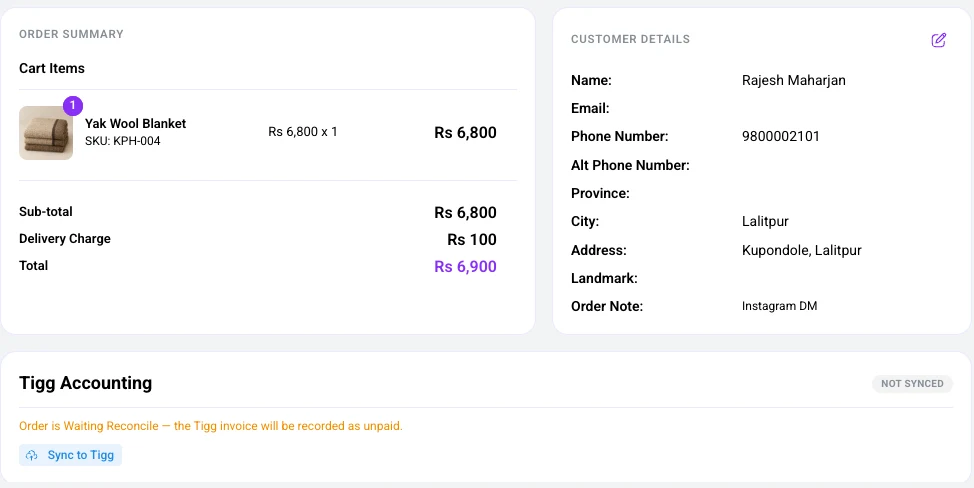
An unpaid or COD order shows Order not fully paid before syncing and asks you to Sync anyway; its Tigg invoice is recorded unpaid. Each sync is also written to the order’s comments, with the Tigg invoice number.
Many orders at once? Select them in Orders and click Sync to Tigg. Choose the tax type and whether to create invoices or drafts only. Orders go one by one, about six a minute, so keep the window open. The Orders list shows a Tigg column: Invoiced, SO draft or Not synced.
VAT invoices straight from the POS counter
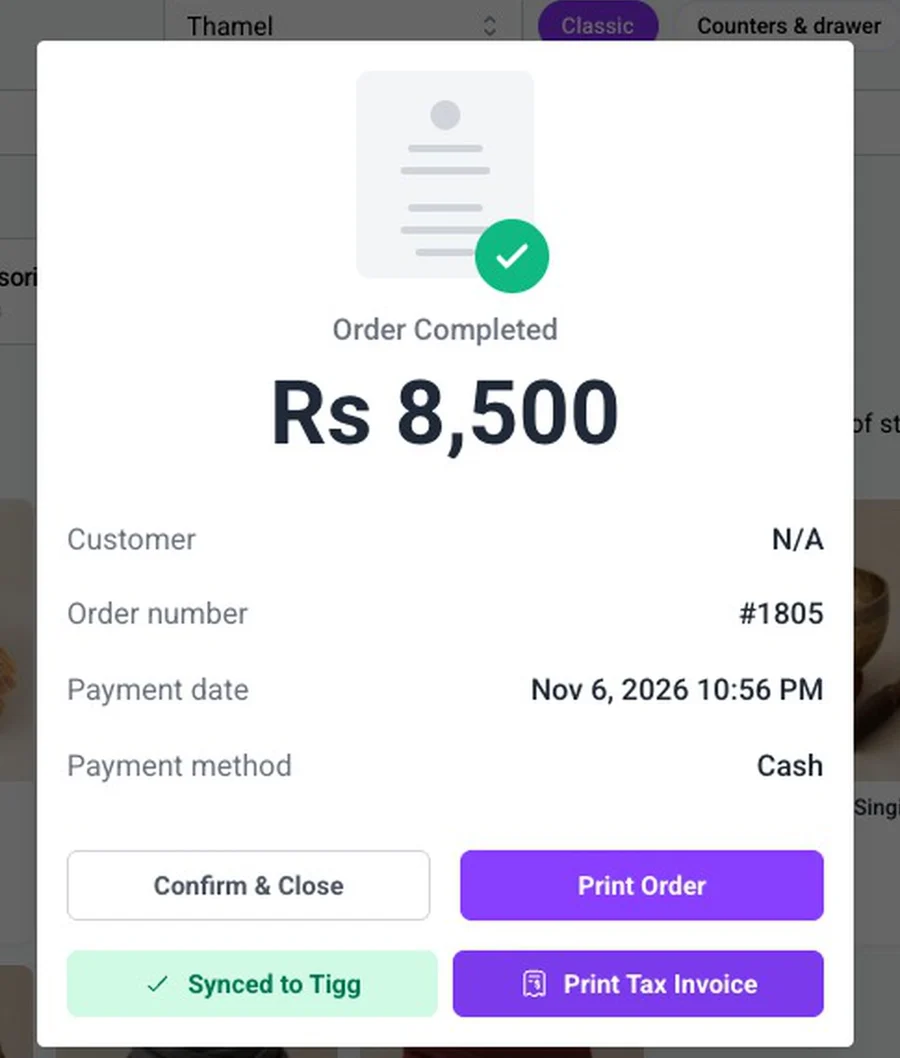
At the counter, complete the sale as usual. On the success screen, click Sync to Tigg. Blanxer creates the Tigg invoice right away, and Print Tax Invoice opens it so you can hand it to the customer. The VAT follows your POS tax rate unless your Tigg default says otherwise.
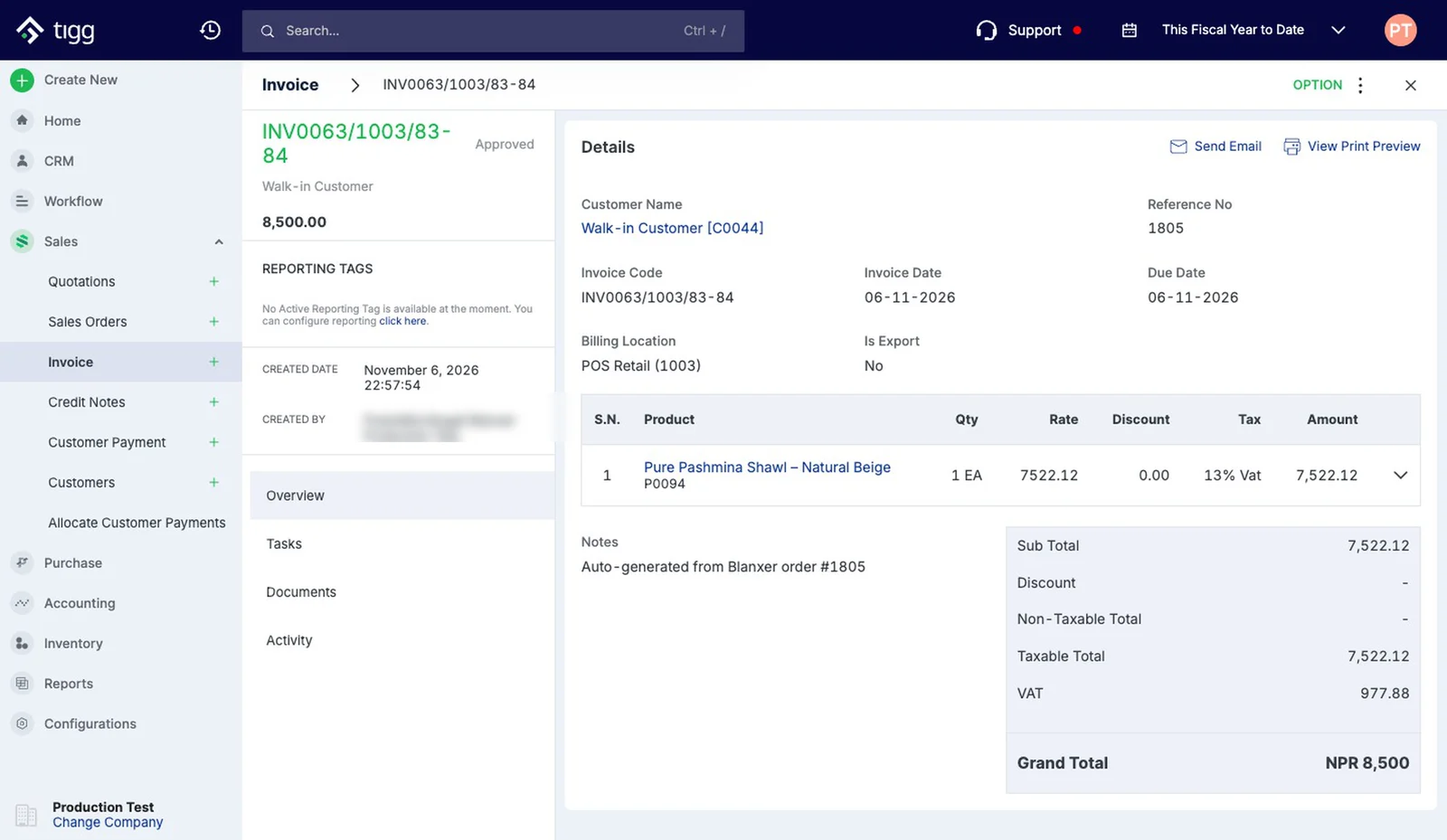
In Tigg, the invoice appears under Sales → Invoice with Blanxer’s order number as its reference, the item, 13% VAT and the cash payment already filled in, and the sale is taken from the linked item’s stock. Your accountant has nothing to type.
The receipt and the tax invoice are separate
Blanxer’s thermal receipt stays the same. The VAT tax invoice is the PDF from Tigg.
Website orders, sent on their own
Turn on Send orders to Tigg automatically in Sync Settings. From then on, each new order goes to Tigg about a minute after it takes stock, and its Tigg card shows the invoice. Cancels and returns go back on their own, as a void or a credit note for what came back. Orders from before you turned it on stay manual.
Good to know
- Syncing is manual unless you turn on Send orders to Tigg automatically in Sync Settings.
- Whether the print is a fiscal Tax invoice or an Estimate bill is set by your Tigg company’s IRD / CBMS setup, not by Blanxer. A Tigg company not yet connected to CBMS prints estimates.
- If an order changes after you synced it, the order shows Order changed since it was synced. Use Void / Re-sync with a reason.
- An invoice already fiscalised with IRD can’t be voided: issue a credit note in Tigg.
- With automatic sending off, returns aren’t sent to Tigg, and COD orders invoiced before they’re paid stay unpaid in Tigg unless you void and re-sync.
- Guests without a name and phone go to one walk-in customer in Tigg. A customer’s PAN goes on the invoice when the order has one.
See the billing software in Nepal page for how IRD e-billing works, and the POS step-by-step guide for selling at the counter.